 on the Slide View Toolbar.
Show lets you create a Master Slide containing any text, graphics, or background you want to add to every slide in your presentation. For example, you can create a Master Slide with your logo, or title, or any other text or graphics you want repeated for all slides.
When you change the Master Slide, your changes apply to all slides in the presentation.
NOTE: You can have only one Master Slide per presentation file.
The topics in this section are:
1. Select View | Slide Master, or click Slide Master
on the Slide View Toolbar.
This action causes the Master Slide to display in the slide editing window.
2. Add any text, graphics, etc., you want to create a Master Slide.
3. When finished, select View | Slide or click Slide  .
.
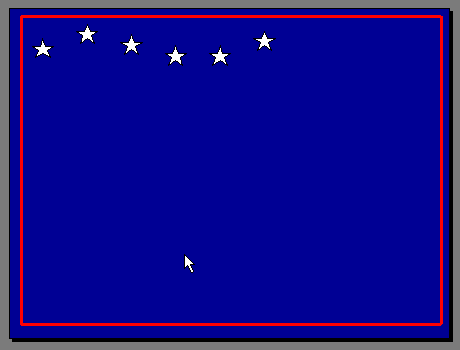 |
Sample Master Slide
In the following steps you will establish background color and patterns for the Master Slide. You can use this same process to set background color and patterns for any slide.
1. Select Format | Background, or click Background  on the Standard Toolbar.
This brings up the Background dialog box.
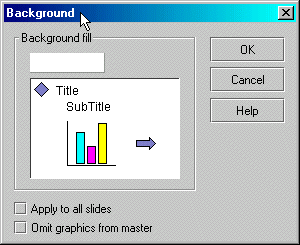
Background Dialog Box
2. Click and choose a Background fill color from the color palette.
3. Optionally, click and choose a Fill Effect (Texture, Pattern, or Picture) from the Fill Effect dialog box.
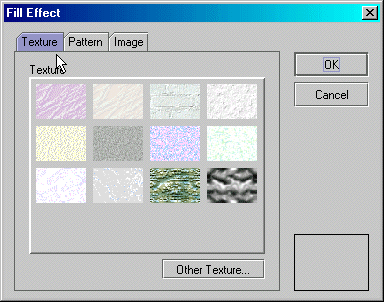
Fill Effect Dialog Box
4. Optionally, check Apply to all slides (to change the entire slide set); otherwise your settings apply only to current slide.
5. Optionally, check Omit graphics from master (to eliminate the master slide's graphics from this slide (or all slides if you checked Apply to all slides).
6. Click OK when done.
1. Select View | Slide Master, or click Slide Master on the Slide View Toolbar.
2. Make the desired changes to the Master Slide.
NOTE: All changes to text, graphics, background color, etc., will now apply to all slides.
3. When you finish modifying the Master Slide, change to Slide View, Slide Sorter View, or Slide Show (otherwise, other changes will apply to the Master Slide).
You are now ready to insert other slides based on the Master Slide. Continue with the next lesson.
Congratulations on completing this Lesson! To go to the next Lesson, click the bold link below.
Lesson 1: Startup and Tour of Toolbars
Lesson 2: Basic Operations, Inserting Textboxes and Text
Lesson 3: Working with Type Fonts and Textbox Attributes
Lesson 4: Paragraph indentation, alignment, line spacing, and bullets
Lesson 5: Inserting shapes and lines
Lesson 7: Grouping, ungrouping, aligning, overlapping objects
Lesson 8: Creating a Master Slide
Lesson 9: Inserting / deleting slides