 |
In this lesson you'll learn about indenting and aligning paragraphs, adjusting line spacing, and adding bullets.
The topics in this section are:
You can specify paragraph indents, text alignment, line spacing, and other paragraph formats in a text box. If you apply paragraph attributes to an entire text box, all paragraphs in the text box will have those properties.
2. Select Format | Paragraph, or press <Ctrl+T>.
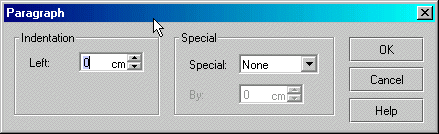
This brings up the Paragraph dialog box.
| |
Paragraph Dialog Box
3. In the Indentation field, notice that you can either type-in, or use the up/down arrows, to specify both Left and Right Indention.
4. In the Special field, specify any Special attributes such as None, First Line indent or Hanging indent.
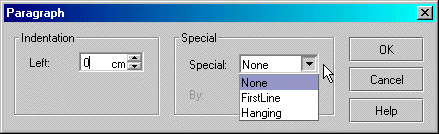 |
Paragraph Dialog Box2
5. Click OK to see the effect(s) applied to the paragraph(s) you selected.
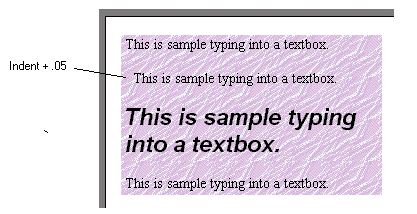 |
Sample Paragraph Indent
6. Also, experiment by clicking the Promote  or Demote button
  on the Formatting toolbar.
7. Experiment with changing paragraph indents until you are satisfied that you understand the process and the effects you can produce for individual paragraphs and whole text boxes.
1. Select a text box or highlight a paragraph within the text box.
2. Select and hold Format | Alignment.
Notice the selections in the submenu
3. Choose Left, Center, Right, Justified, or Distributed from the submenu
Left: Aligns selected paragraphs left.
Right: Aligns selected paragraphs right.
Center: Center-aligns the selected paragraphs.
Justified: Justifies the selected paragraphs both left and right.
Distributed: Aligns selected paragraphs left or right and makes equal space between the words.
4. That's all there is to it!
5. Experiment with changing paragraph alignment until you are satisfied that you understand the process and the effects you can produce for individual paragraphs and whole text boxes.
1. Select Format | Line Spacing.
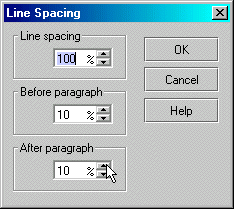 |
Line Spacing Dialog Box
2. In the Line Spacing dialog box, specify line spacing as a percentage of font size as follows:
Line spacing (space between lines in a paragraph)
Before Paragraph (space before paragraph, default 100%)
After Paragraph (space after paragraph)
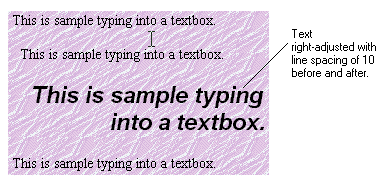 |
Line Spacing Example
3. Experiment with line spacing until you are satisfied that you understand the process and the effects you can produce for individual paragraphs and the whole text box.
1. Select a text box or highlight paragraph(s) to which you want to add bullet(s).
2. Select Format | Bullet.
This brings up the Bullet dialog box.
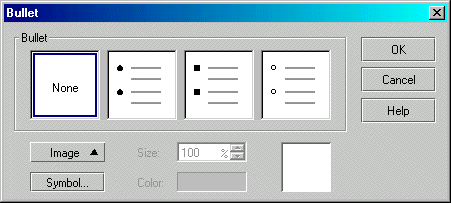 |
Bullet Dialog Box
3. Notice that the Bullet dialog box offers a choice of standard bullets, symbols, colors, or preformatted graphic Image bullets, as follows:
Bullet Select from None, Boxes, or closed or open Circles.
Size Bullet size is normally 70% of font size. You enter a different percentage in the size box.
Color Click Color to specify the color of colorable bullets
Image Click Image to select from preformatted bullets (you cannot change the color of these images).
Symbol Click Symbol to invoke the Symbol Dialog box from which to select a variety of symbols.
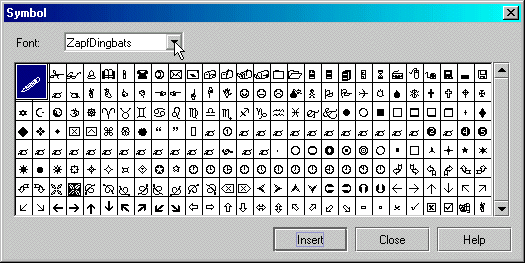 |
Symbol Dialog Box
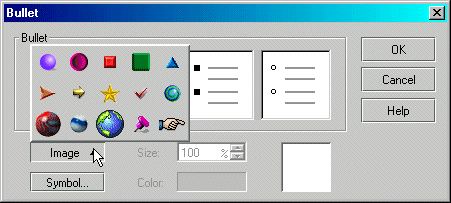 |
Bullet Images
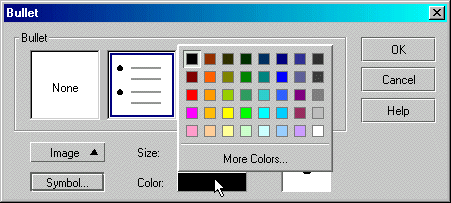 |
Bullet Colors
NOTE: If you press <Enter> at the end of a bulleted line, a bullet automatically appears in front of the next line.
4. Select any bullet option.
5. Click OK.
5. Notice the effect created by your selection of bullet type.
6. Press <Enter> at the end of a bulleted line and notice that a bullet automatically appears in front of the next line.
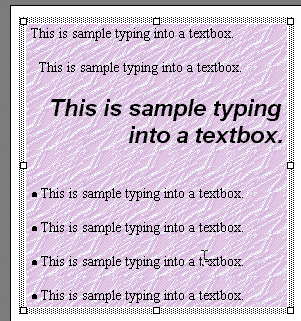 |
Sample Bullets
7. Experiment with various bullet options until you are satisfied that you understand the process and the effects you can produce for individual paragraphs and the whole text box.
1. Place the cursor in the desired paragraph.
2. Click the Bullet button  on the Formatting Toolbar to toggle the currently specified bullet type
ON/OFF for the selected paragraph(s).
on the Formatting Toolbar to toggle the currently specified bullet type
ON/OFF for the selected paragraph(s).
1. Place the cursor in the paragraph where you want to adjust the bullet.
2. Change the font size or alter the bullet type by selecting Format | Bullet
This brings up the Bullet dialog box where you can adjust the Size or type.
3. Also, try clicking the Promote
or Demote button
on the Formatting toolbar to indent bulleted paragraphs.
4. Experiment with changing the bullet size until you are satisfied that you understand the process and the effects you can produce.
Congratulations on completing this Lesson! To go to the next Lesson, click the bold link below.
Lesson 1: Startup and Tour of Toolbars
Lesson 2: Basic Operations, Inserting Textboxes and Text
Lesson 3: Working with Type Fonts and Textbox Attributes
Lesson 4: Paragraph indentation, alignment, line spacing, and bullets
Lesson 5: Inserting shapes and lines
Lesson 7: Grouping, ungrouping, aligning, overlapping objects
Lesson 8: Creating a Master Slide
Lesson 9: Inserting / deleting slides