on the Standard Toolbar, or type <Ctrl>+O.
In this lesson you'll open the file you saved in Lesson 3, then learn how to enlarge or reduce the size of type faces (fonts) and modify textbox attributes.
The topics in this section are:
To begin this lesson, you will open the file you saved in the previous lesson Lesson 3.
1. Click File | Open, or click Open
on the Standard Toolbar, or type <Ctrl>+O.
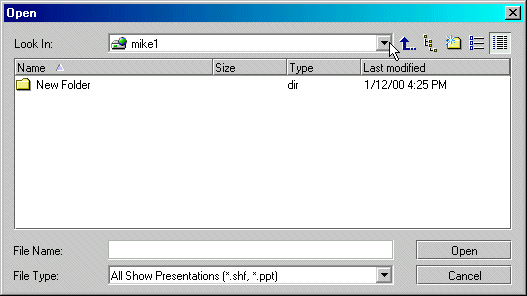
This brings up the Open dialog box.
Open Dialog Box
2. Notice in the the Open dialog box the following buttons:
Up One Level (moves up one folder level)
Folder Pane (toggles the Folder Pane display)
Folder (creates new folder)
List (displays file list without details)
Details (displays file list with details)
Use these buttons to help navigate and display the files and folders on your system.
3. Notice, in the Open dialog box, that you can specify a File Type, which causes only specified file types to display in the dialog box as follows:
All Files (*.*)
All Show Presentations (*ppt, *.shf)
Show Presentations (*.shf)
MS PowerPoint Presentations (*.ppt)
4. Using the Open dialog box, navigate to the file you saved in Lesson 2.
5. Using the cursor, highlight the file, (or type "tutorial show file" (with "shf" file extension)).
6. Click Open.
The file will open in the slide-edit window.
7. Notice that the file name appears in the title bar (top of window).
Within a textbox, you can select certain text and change font type, font size, or font color and apply bold, italic and underline.
1. Within the textbox, highlight some specific text to change.
2. Select Format | Font or press <Ctrl+L>.
This brings up the Font dialog box.
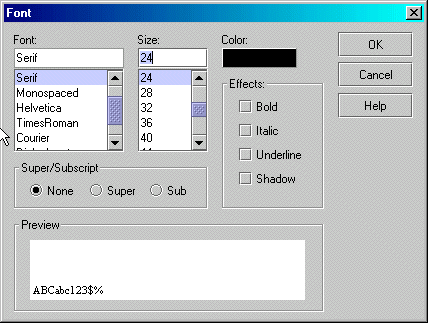 |
Font Dialog Box
3. Using the Font dialog box, experiment with changing various attributes such as font size, type and/or color, bold italic, shadow, super/subscript, etc.
4. Use the dialog's Preview option to verify your formatting.
5. When done, click OK.
You can select a textbox and change all the text at one time: font type, font size, or font color, bold, italic and underline. In this step, we will use the Format Toolbar (instead of the Font Dialog box) to modify all the text in the textbox.
1. Click the edge of the text box to select the text box.
2. Click the buttons on the Format Toolbar to:
1. Select a specific font and its size,
2. Increase or decrease font size,
3. Make the typeface bold, italicized, and/or underlined, and,
4. Align the text to the left, center, or right, or
5. Justify the text left/right.
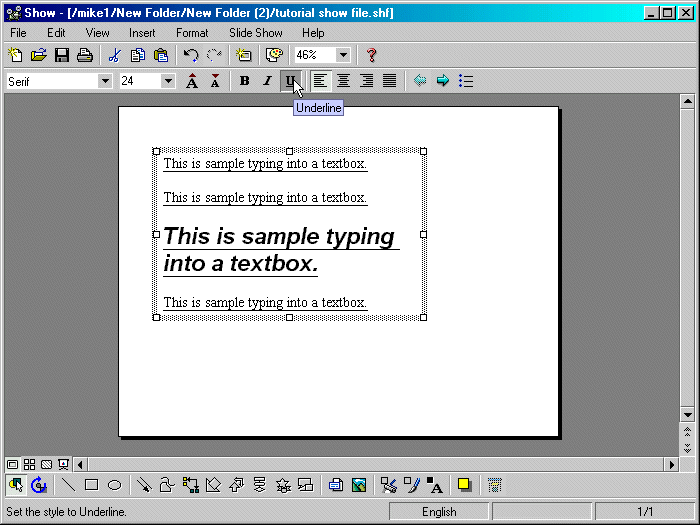 |
Sample Underline
1. First, to display the text box, click anywhere in the text.
2. Place the cursor directly over an edge of the box (avoiding the size handles).
The cursor will change to a four-arrow cross pointer.
3. Click, hold, and drag the box to the desired position.
1. First, to display the text box, click anywhere in the text.
2. Place the cursor directly over an edge of the box (avoiding the drag handles).
The cursor will change to a four-arrow cross pointer.
3. Select Format | Format AutoShape, or double click the edge of the box, or right-click the mouse and select Format AutoShape.
This brings up the Text Attribute dialog box, with 3 tabs of options (Colors/Lines, Size/Position, and Text Box), where you can make a variety of adjustments. See also More Colors dialog box.
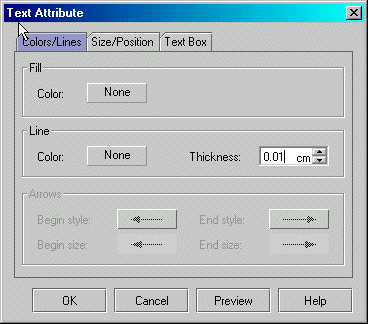 |
Text Attribute Dialog Box
4. Experiment with changing text attributes until you are satisfied that you understand the process and the effects you can produce.
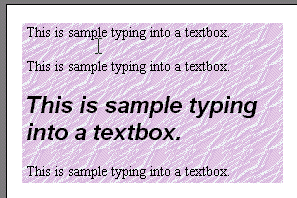 |
Sample Text Attributes
Congratulations on completing this Lesson! To go to the next Lesson, click the bold link below.
Lesson 1: Startup and Tour of Toolbars
Lesson 2: Basic Operations, Inserting Textboxes and Text
Lesson 3: Working with Type Fonts and Textbox Attributes
Lesson 4: Paragraph indentation, alignment, line spacing, and bullets
Lesson 5: Inserting shapes and lines
Lesson 7: Grouping, ungrouping, aligning, overlapping objects
Lesson 8: Creating a Master Slide
Lesson 9: Inserting / deleting slides