 on Drawing toolbar.
 In this lesson you'll create a text box, type in some text, learn the Cut, Copy, and Paste functions, and, set the gridlines.
The topics in this section are:
To insert text in a slide, you must insert the text into either a text box or a graphic that has room for text (ex: rectangle, ellipse, circle, diamond, etc., on the Drawing Toolbar).
1. Select Insert | Text Box or click Text Box
on Drawing toolbar.
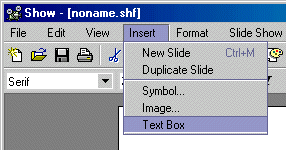 |
Insert Textbox
2. The cursor will change to a cross pointer.
3. Position the cross where you want the text box inserted, then click/hold and drag the mouse to define the width of the text box.
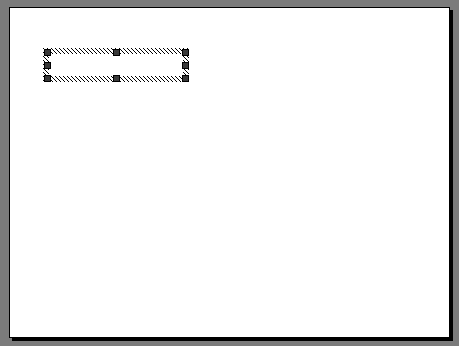
Height Of Textbox
4. The height of the text box automatically adjusts to the current text size.
To change the width of the text box, drag the mouse.
5. Type several lines into the text box. Don't worry about what it says or whether it makes sense. All we want at this point is some text and paragraphs to work with.
6. Notice that the height of the box automatically adjusts to accommodate the number of lines you type.
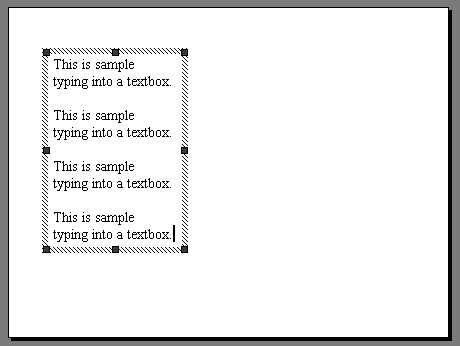
Sample Text
7. Optionally, you can now move the box and/or adjust its width (by dragging the box handles).
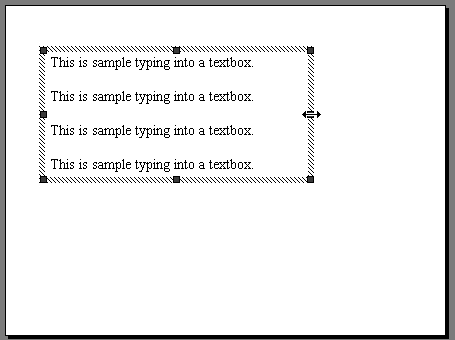
Sample Text Drag
1. Place the cursor over the edge of the textbox you just inserted (pointer changes to two double arrows).
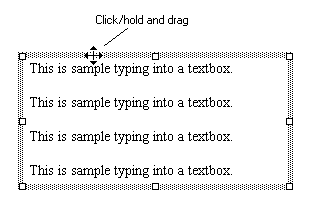 |
Click Hold And Drag
2. Click/hold and drag the mouse to move the textbox to a new location.
Now that you have typed in several lines of text, let's quickly review the Cut, Copy, and Paste functions. These functions use the "Clipboard" as temporary storage. (Ordinarily, the Clipboard is not visible.)
1. Place the cursor within the text box, click/hold and drag the mouse to highlight some text you want to cut (delete).
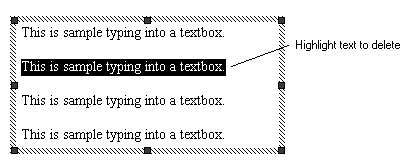 |
Highlight Text To Delete
2. With a few characters or lines highlighted, select Edit | Cut, or
click Cut  on
the Standard Toolbar, or type <Ctrl>+X.
on
the Standard Toolbar, or type <Ctrl>+X.
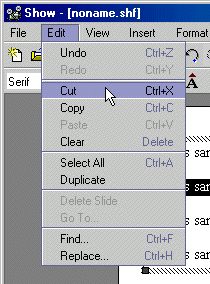 |
Edit Cut
3. Notice that this action cuts (deletes) the selected item or text. The text is saved to the Clipboard. (Similar to Copy but deleting the selection.)
1. Place the cursor where you want to paste the contents of the Clipboard.
2. Select Edit | Paste, click Paste  on Standard Toolbar, or type <Ctrl>+V
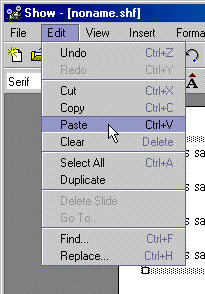 |
Edit Paste
3. Notice that this action pastes (inserts) the contents of the Clipboard at the current cursor location. You can repeat Paste as often as you want.
The Clipboard contents remains until you Cut or Copy again.
NOTE: Any highlighted item(s) will be replaced by the contents of the Clipboard.
NOTE: Paste is not activated until you Cut or Copy an item or text to the Clipboard.
Copy works the same as Cut except the highlighted item(s) are not deleted.
1. Highlight the text to copy to the Clipboard.
2. Select Edit | Copy, or click Cut
on Standard Toolbar, or type <Ctrl>+C.
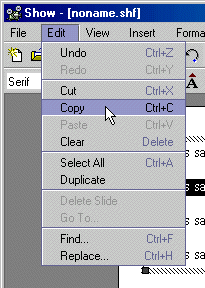 |
Edit Copy
This action copies (duplicates) the selected item or text and saves it to the Clipboard. (Similar to Cut but without deleting the selection.)
OK so far? Great! Here's a writing convention used throughout this ThinkFree tutorial:
Pull-down menu commands are separated by a vertical bar character "|". Also, menu text will be bold, as follows:
Format | Order | Bring to Front
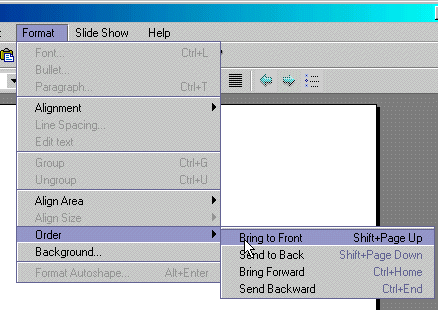 |
Format Bring To Front1
In this example, you would click Format on the menu bar, then click Order from the pull-down menu and then click Bring to Front from the submenu.
Thus, from here on, example pull-down graphics will no longer be used.
At this point, you have made several changes to the original blank slide. Using the Undo feature, you could reverse all changes, in reverse order, back to the blank slide. You could then use Redo to reverse all the previous Undos, back to current condition.
1. Select Edit | Undo, click Undo  on the Standard Toolbar.
This action undoes (reverses) the previous action and returns the slide to its previous state. Undo can be repeated to undo all previous actions, one at a time in reverse order.
2. Repeat Undo to reverse as many previous actions as desired.
1. Select Edit | Redo, or click Redo  on the Standard Toolbar.
This action undoes (reverses) the previous Undo and returns the slide to its previous state(before Undo). Redo can be repeated to redo all previous Undo actions, one at a time in forward order.
2. Repeat Redo to reverse as many previous Undo actions as desired.
Experiment with these features until you are satisfied that you understand the process and the effects you can produce.
1. Select View | Grid.
2. Make sure the Grid checkbox is checked.
Grid lines will display in the editing window to help you precisely place items on the slide.
Grid Lines are neither printed nor displayed in the Slide Show.
NOTE: To turn OFF gridlines, uncheck the Grid checkbox.
4. Leave the gridlines ON or OFF, your choice. They are not need for this tutorial
Now that you have created a slide, let's save it to a file that will be used in the next lesson.
1. Select File | Save, click Save  on standard toolbar, or type <Ctrl>+S.
Assuming your file is currently unnamed [noname.shf], this brings up the Save dialog box.
Save Dialog Box1
2. Notice, in the the Save dialog box the following buttons:
Up One Level (moves up one folder level)
Folder Pane (toggles the Folder Pane display)
Folder (creates new folder)
List (displays file list without details)
Details (displays file list with details)
Use these buttons to help navigate and display the files and folders on your system.
3. Notice, in the Save dialog box, that you can specify a File Type for your save file. You can save your file as a Show Presentation (*.shf) or as an MS PowerPoint Presentation (*.ppt).
Save Dialog Box2
4. Navigate to the folder where you want to save your file.
5. Type "tutorial show file" as your file name.
6. Click Save.
NOTE for Save and Save As: After you Save a file to a given file name, using Save automatically saves to this same file name. To save to a different file name or type, select Save | As.
As you progress through this tutorial, save your file occasionally. This way, you can take a break or move to another location, you can pick up where you left off.
Congratulations on completing this Lesson! To go to the next Lesson, click the bold link below.
Lesson 1: Startup and Tour of Toolbars
Lesson 2: Basic Operations, Inserting Textboxes and Text
Lesson 3: Working with Type Fonts and Textbox Attributes
Lesson 4: Paragraph indentation, alignment, line spacing, and bullets
Lesson 5: Inserting shapes and lines
Lesson 7: Grouping, ungrouping, aligning, overlapping objects
Lesson 8: Creating a Master Slide
Lesson 9: Inserting / deleting slides