 button.
At this point you should have several unique slides for your presentation.
The topics in this section are:
You can set up your slide presentation to have either manual or automatic timing for each slide.
1. (Optionally) select View | Slide Sorter, or click the View
Slide Sorter
button.
It is most practical to setup slide timing from the sorter view, unless you are going to set them all the same.
2. (If in Sorter View) click the slide you want to set timing for.
3. Select Slide Show | Set Up Show or type <Shift>+F10.
This brings up the Set Up Show dialog box.
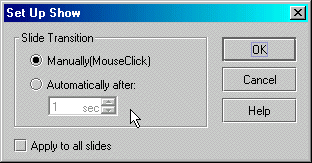 |
Setup Show Dialog Box
4. Choose Manual or Automatic.
5. If you choose Automatic, enter the slide duration time in the box provided.
6. Optionally, select Apply to all slides.
7. Click OK.
8. Notice that slide timing displays under each slide in Sorter View. (Manually timed slides display no timing number.)
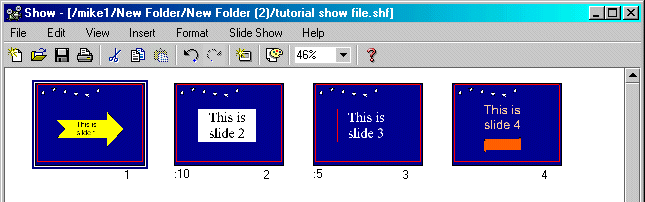 |
Sample Show Timing
Slide 1: Manual
Slide 2: 10 seconds
Slide 3: 5 seconds
Slide 4: Manual
Slide Show displays your slides, one at a time, at full-screen size.
1. Select View | Slide Show, or click Slide Show on the Slide View Toolbar , or type <Ctrl>F10.
The first slide will display.
2. If you are running a manual slide show, click each slide to bring up next slide.
3. If you are running an automatic slide show, slide changes occur automatically, according to settings you made in the Set Up Show dialog box.
When the slide show is finished, Show displays its end message and blacks out the screen.
5. When the show is over, click the mouse to return to last-used editing screen.
1. While the Slide Show is running, right-click the mouse.
2. From the Popup menu, choose Previous Slide, Next Slide, or Exit.
If you're in automatic mode, timing will resume with the selected slide.
Congratulations on completing this Tutorial! If you want to review any lesson(s), click the link below.
Lesson 1: Startup and Tour of Toolbars
Lesson 2: Basic Operations, Inserting Textboxes and Text
Lesson 3: Working with Type Fonts and Textbox Attributes
Lesson 4: Paragraph indentation, alignment, line spacing, and bullets
Lesson 5: Inserting shapes and lines
Lesson 7: Grouping, ungrouping, aligning, overlapping objects
Lesson 8: Creating a Master Slide
Lesson 9: Inserting / deleting slides